
How to See Your Google Search History (and Delete It)
Learn how to view, manage, and permanently delete your Google Search history on desktop and mobile. Step-by-step privacy guide for Google Activity controls, auto-delete settings, and account security.
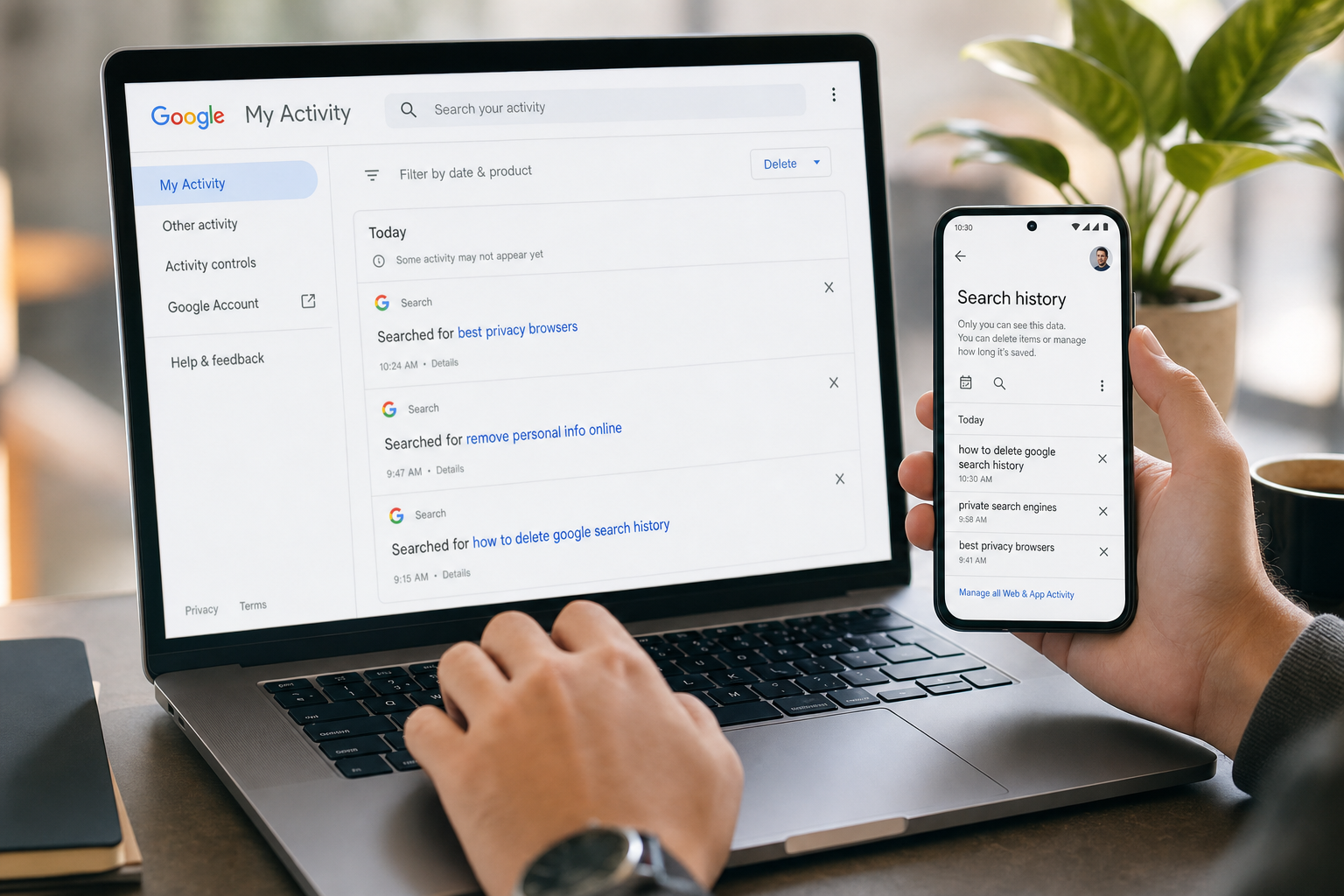
How to See Your Google Search History (and Delete It)
Google keeps track of a surprising amount of information about your searches, browsing activity, and app usage. While this data can make Google services more personalized, many users prefer to review, manage, or delete their search history for privacy reasons.
In this guide, you'll learn:
- How to see your Google Search history
- How to delete individual searches
- How to clear your entire Google Search history
- How to turn off Google Search tracking
- How to auto-delete activity automatically
- What happens when you delete your search history
Whether you're using Chrome, Android, iPhone, or another browser, these steps work for any Google account.
Quick answer
Go to Google My Activity, sign in, choose Filter by date & product → Google Search, and select Delete. You can remove one item, a date range, or all activity. Then clear your browser history separately because Google account activity and local browser history are not the same thing.
Choose your route: Chrome & Incognito · Browser History Guides · Mobile Privacy
What Is Google Search History?
Your Google Search history is part of your Google Activity data. When Web & App Activity is enabled, Google stores:
- Searches made on Google
- Voice searches
- Chrome browsing activity (if syncing is enabled)
- Google Assistant interactions
- Activity across Google apps and services
This information is tied to your Google account and can be viewed through Google's My Activity dashboard.
How to See Your Google Search History
On Desktop (Windows, Mac, Chromebook)
- Open your browser
- Go to https://myactivity.google.com
- Sign in to your Google account
- Scroll down to see recent activity
- Click Filter by date & product
- Select Google Search
- Click Apply
You will now see your full Google Search history in chronological order.
Quick Tip
Use the search bar at the top of the page to find:
- Specific searches
- Older activity
- Searches from certain dates
- YouTube or Maps activity
How to See Google Search History on Android
For local browser data as well, follow how to clear Chrome history on Android.
- Open the Google app
- Tap your profile picture
- Select Search history
- Browse your recent searches
You can also access full account activity by opening:
Settings → Google → Manage your Google Account → Data & privacy → My Activity
How to See Google Search History on iPhone or iPad
If you browse with Safari, use the Safari Guides hub; Chrome users can follow Chrome on iOS history steps.
- Open the Google app
- Tap your profile picture
- Select Search history
- Review your recent activity
You can also visit:
through Safari or Chrome.
How to Delete Individual Google Searches
If you only want to remove certain searches:
- Visit My Activity
- Locate the search entry
- Click the X or Delete button next to it
- Confirm deletion
This removes the selected search from your Google account.
How to Delete Your Entire Google Search History
To completely erase your Google search activity:
- Go to myactivity.google.com
- Click Delete from the left menu
- Choose one of the options:
- Last hour
- Last day
- All time
- Custom range
- Select Google Search if prompted
- Confirm deletion
Google may take several minutes to fully remove all activity.
How to Automatically Delete Google Search History
Google allows you to auto-delete activity after a certain time period.
Enable Auto-Delete
- Open My Activity
- Click Web & App Activity
- Select Auto-delete
- Choose:
- 3 months
- 18 months
- 36 months
- Save your settings
This is one of the easiest ways to improve your privacy without manually clearing history.
How to Stop Google From Saving Your Searches
If you do not want Google to track searches at all:
- Go to My Activity
- Select Web & App Activity
- Click Turn Off
- Choose:
- Turn off
- Turn off and delete activity
Once disabled, Google will stop storing future searches tied to your account.
What Happens When You Delete Google Search History?
Deleting your search history can:
- Improve privacy
- Reduce targeted ads
- Remove embarrassing or sensitive searches
- Prevent synced devices from showing old activity
However, deleting history may also:
- Reduce personalized recommendations
- Reset some Google suggestions
- Affect Assistant or Maps personalization
Your browser history may still exist separately unless you clear it too.
Difference Between Google Search History and Browser History
To clear the second layer, choose your browser in the Browser History Guides hub.
Many people confuse these two types of history.
| Google Search History | Browser History |
|---|---|
| Stored in your Google account | Stored locally in your browser |
| Syncs across devices | Usually device-specific |
| Managed through My Activity | Managed through browser settings |
| Includes Google app activity | Includes all visited websites |
For maximum privacy, clear both.
How to Clear Chrome Browser History
Desktop
- Open Chrome
- Press Ctrl + Shift + Delete (Windows) or Command + Shift + Delete (Mac)
- Select:
- Browsing history
- Cookies
- Cached files
- Choose All time
- Click Clear data
Mobile
- Open Chrome
- Tap the three-dot menu
- Select History
- Tap Clear browsing data
- Confirm deletion
Does Incognito Mode Save Search History?
Learn the limits before relying on it: what Incognito Mode really does.
Incognito Mode prevents:
- Local browser history storage
- Cookie persistence
- Session tracking on your device
But it does not hide activity from:
- Internet providers
- Employers or schools
- Websites you visit
For better privacy, consider combining Incognito Mode with a VPN and disabling Web & App Activity.
Frequently Asked Questions
Can I recover deleted Google Search history?
Usually not. Once permanently deleted from your Google account, recovery is difficult or impossible.
Why is Google saving my searches?
Google uses activity data to personalize search results, ads, Assistant responses, and recommendations.
Does deleting search history remove ads?
No, but it can reduce ad personalization.
Is Google Search history stored forever?
Not necessarily. You can manually delete it or enable auto-delete settings.
Can someone else see my Google Search history?
Anyone with access to your Google account or synced devices may potentially view your activity.
Privacy Tips to Reduce Tracking
For more than Google settings, continue with the Privacy Guides hub.
To improve online privacy:
- Use Incognito Mode when needed
- Disable Web & App Activity
- Turn on auto-delete
- Regularly clear browser history
- Use privacy-focused browsers
- Enable two-factor authentication
- Use a trusted VPN
Small privacy improvements can significantly reduce long-term data collection.
Keep improving your privacy
- Delete Google Search history and stop tracking
- Clear history in any browser
- Stop history showing on other devices
- Why clearing history does not clear everything
Browse all browser guides, mobile privacy guides, and social-media privacy guides.
Final Thoughts
Google Search history can reveal years of personal information, interests, habits, and online behavior. Fortunately, Google provides tools that let you view, manage, delete, and automatically clear this data.
If privacy matters to you, regularly reviewing your Google Activity settings is a smart habit.
Taking a few minutes to manage your search history today can help protect your personal data in the future.
Keep reading
Related posts

How to Clear Search Recommendations
Learn how to clear search recommendations in browsers, Google, YouTube, Instagram, Facebook, TikTok, and other apps by managing history, cookies, and account activity.

How to Check Incognito History on Any Device
Learn whether Incognito history can be checked on phones, tablets, computers, routers, Google accounts, and managed school or work devices.

How to Erase Incognito History Permanently
Learn how to permanently erase Incognito-related traces by closing private tabs, deleting account activity, removing downloads, and clearing browser data.