
How to Clear Google Chrome on iOS Browser History
Learn how to clear Google Chrome browsing history on iPhone and iPad. Remove cookies, cache, and browsing data to improve privacy and browser performance.
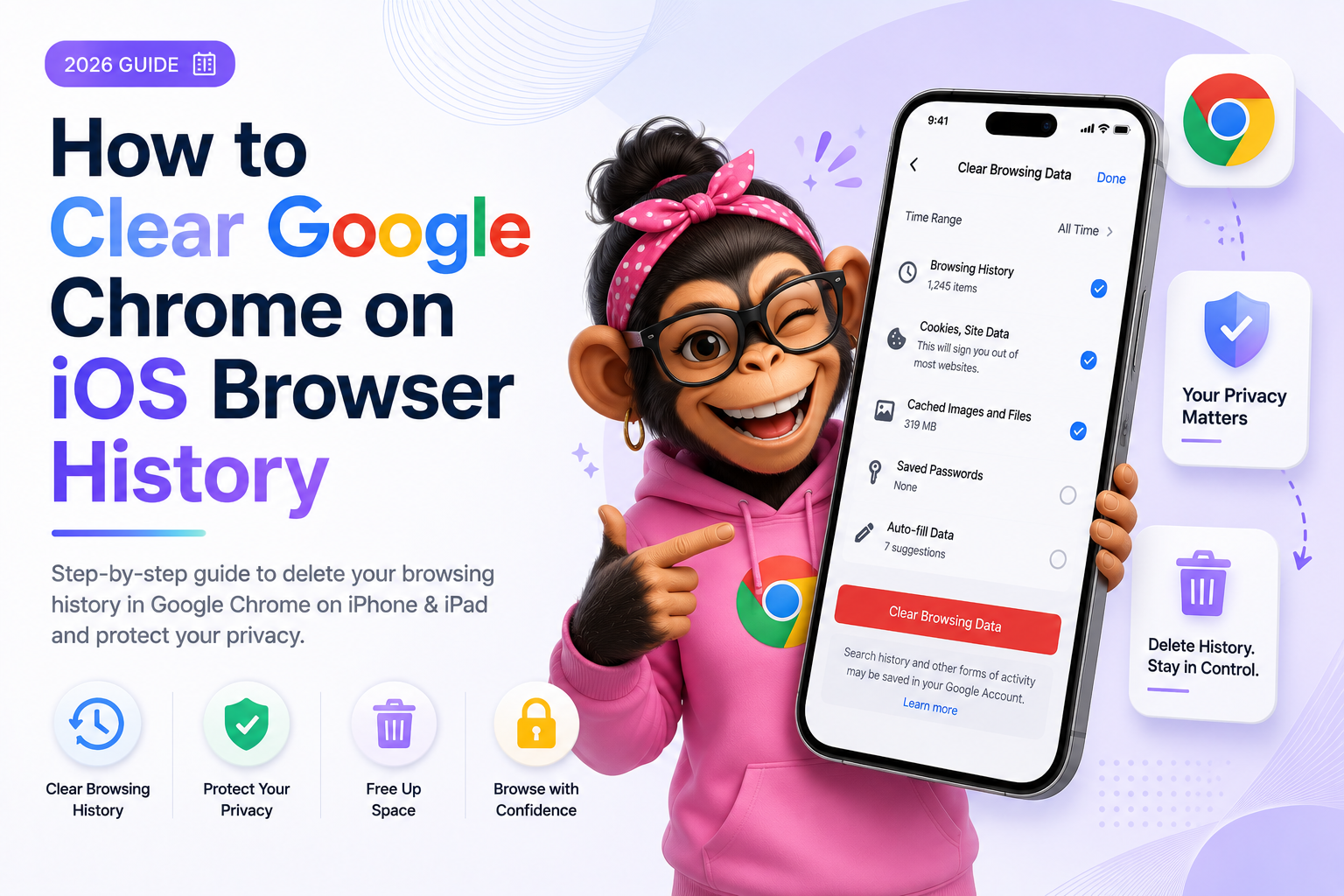
How to Clear Google Chrome on iOS Browser History
Google Chrome is one of the most popular browsers on iPhone and iPad devices. As you browse the web, Chrome stores browsing history, cookies, cached files, and other website data to improve loading speed and convenience.
Over time, this stored information can affect your privacy, take up storage space, and sometimes cause browser performance issues.
In this guide, you’ll learn how to clear Google Chrome browser history on iOS devices, what data gets removed, and how to improve your online privacy.
Why Clear Chrome Browser History on iPhone and iPad?
Clearing your browsing data can help:
- Protect your privacy
- Remove stored browsing activity
- Delete cookies and trackers
- Improve browser performance
- Free up storage space
- Fix loading problems
- Remove autofill suggestions
This is especially useful if:
- You share your device
- You browse sensitive websites
- You use public or shared networks
- You want to reduce online tracking
What Chrome Stores on iOS
Chrome may store:
- Browsing history
- Search history
- Cookies
- Cached images and files
- Saved passwords
- Autofill form data
- Website permissions
- Download history
When clearing browsing data, you can choose which information to remove.
How to Clear Chrome Browser History on iPhone and iPad
Step 1: Open Google Chrome
Launch the Chrome app on your iPhone or iPad.
Step 2: Open the Chrome Menu
Tap the three-dot menu icon.
Depending on your version of Chrome, the menu may appear at the top or bottom of the screen.
Step 3: Open History
Tap:
- History
You’ll see your recent browsing activity.
Step 4: Tap “Clear Browsing Data”
Select:
- Clear Browsing Data
Chrome will open the browsing data settings.
Step 5: Choose a Time Range
Chrome allows you to remove browsing data from:
- Last hour
- Last 24 hours
- Last 7 days
- Last 4 weeks
- All time
For a complete cleanup, choose:
- All Time
Step 6: Select What to Delete
You can remove:
- Browsing history
- Cookies and site data
- Cached images and files
- Saved passwords
- Autofill data
Choose the categories you want to clear.
Step 7: Confirm Deletion
Tap:
- Clear Browsing Data
Confirm the action when prompted.
Chrome will remove the selected browsing information.
How to Manage Google Account Activity
Even after clearing local browser history, some activity may still be stored in your Google account.
Manage Google Activity
- Open your Google Account
- Go to Data & Privacy
- Select:
- Web & App Activity
- Choose:
- Auto-delete or manually delete activity
This helps reduce long-term account tracking.
How to Use Incognito Mode on iPhone and iPad
Chrome includes Incognito Mode, which reduces local browsing storage.
Incognito Mode prevents Chrome from saving:
- Browsing history
- Search entries
- Cookies after sessions end
- Form data
Open Incognito Mode
- Open Chrome
- Tap the three-dot menu
- Select:
- New Incognito Tab
While Incognito Mode improves local privacy, it does not make you completely anonymous online.
Your:
- Internet provider
- School or employer
- Websites you visit
…may still see your activity.
Does Clearing Chrome History Delete Everything?
No.
Even after clearing local browser data:
- Google account activity may still remain
- Websites may continue tracking logged-in sessions
- Downloaded files remain on the device
- Synced account data may still exist
- Internet providers may still see traffic logs
Clearing browser history improves privacy, but it does not completely erase your online footprint.
Tips for Better Privacy on iOS
To improve your privacy even more:
Use Strong Passwords
Avoid reusing passwords across multiple accounts.
Enable Two-Factor Authentication
Extra account protection helps prevent unauthorized access.
Keep Chrome Updated
Updates improve security and performance.
Review App Permissions
Check access to:
- Location
- Camera
- Microphone
- Contacts
- Notifications
Use Secure Websites
Only enter sensitive information on trusted HTTPS websites.
Common Problems After Clearing Chrome Data
You may notice:
- Logged-out websites
- Removed saved preferences
- Slower first-time page loads
- Lost autofill suggestions
This is normal because cookies and cache were removed.
Final Thoughts
Clearing Google Chrome browser history on iPhone and iPad is a simple way to improve privacy, reduce tracking, and help your browser run more smoothly.
Regularly deleting browsing data can help protect your personal information, especially if you share your device or browse sensitive websites.
For stronger online privacy, combine history clearing with safe browsing habits, strong passwords, and careful privacy settings.
Keep reading
Related posts

How to Clear Search Recommendations
Learn how to clear search recommendations in browsers, Google, YouTube, Instagram, Facebook, TikTok, and other apps by managing history, cookies, and account activity.

How to Check Incognito History on Any Device
Learn whether Incognito history can be checked on phones, tablets, computers, routers, Google accounts, and managed school or work devices.

How to Erase Incognito History Permanently
Learn how to permanently erase Incognito-related traces by closing private tabs, deleting account activity, removing downloads, and clearing browser data.