
How to Delete ChatGPT History on Desktop, iPhone, and Android
Learn how to delete ChatGPT history, remove individual conversations, clear all chats, and manage your privacy settings on desktop, iPhone, and Android devices.
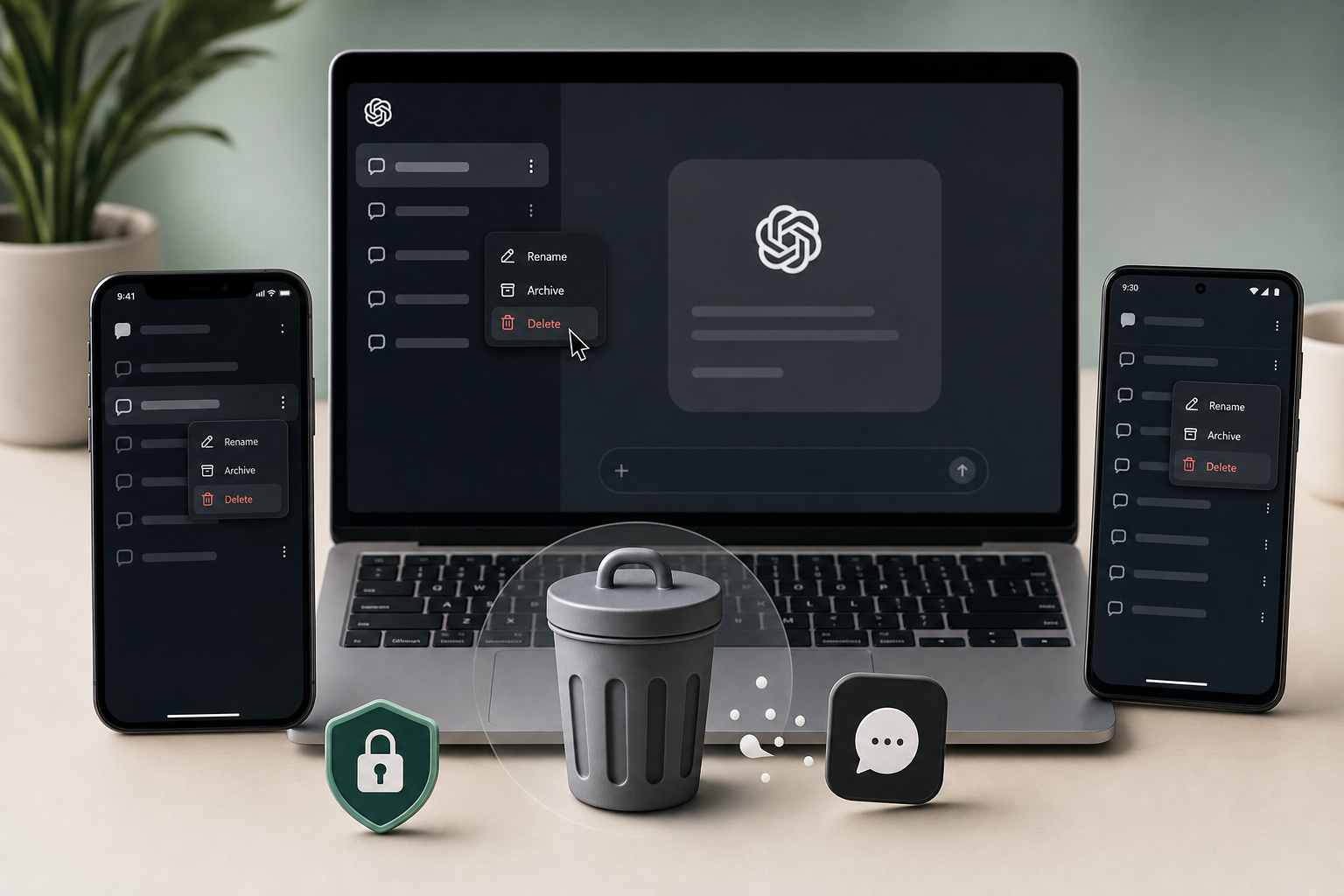
How to Delete ChatGPT History on Desktop, iPhone, and Android
Quick Answer
To delete ChatGPT history:
- Open ChatGPT and sign in.
- Find the conversation you want to remove.
- Click or tap the three-dot menu next to the chat.
- Select Delete.
- Confirm the deletion.
To delete all ChatGPT conversations:
- Open Settings.
- Select Data Controls.
- Click Delete All Chats.
- Confirm your choice.
If you want maximum privacy, you can also disable Chat History & Training so future conversations are not saved in your chat history.
How to Delete ChatGPT History
ChatGPT makes it easy to revisit previous conversations, continue projects, and find information you've discussed before. However, there are many reasons you may want to delete your ChatGPT history.
You may be using a shared device, discussing sensitive topics, testing prompts, or simply wanting a cleaner workspace. Fortunately, ChatGPT allows you to remove individual conversations, clear all chats, and control how future conversations are stored.
This guide explains exactly how to delete ChatGPT history on desktop, iPhone, and Android, while also covering privacy settings and common questions.
Why Delete ChatGPT History?
Many users choose to clear their ChatGPT history for privacy and organization reasons.
Common reasons include:
- Removing sensitive personal information.
- Protecting privacy on shared computers.
- Keeping work conversations separate.
- Reducing clutter in the chat sidebar.
- Managing account security.
- Preventing others from viewing previous chats.
Deleting old conversations can help maintain a cleaner and more secure ChatGPT experience.
What Happens When You Delete a ChatGPT Conversation?
When you delete a conversation:
- The conversation disappears from your chat history.
- It is removed from the sidebar.
- You can no longer access it through your account.
- The deletion cannot typically be reversed through the ChatGPT interface.
For this reason, you should save important information before deleting a conversation.
How to Delete Individual ChatGPT Conversations on Desktop
If you only want to remove one conversation, follow these steps:
- Open ChatGPT in your browser.
- Sign into your account.
- Locate the conversation in the left sidebar.
- Hover over the conversation title.
- Click the three-dot menu.
- Select Delete.
- Confirm the deletion.
The conversation will immediately be removed from your account history.
How to Delete ChatGPT History on iPhone
Using the ChatGPT iOS app:
- Open the ChatGPT app.
- Tap the menu icon.
- Locate the conversation.
- Swipe left on the chat.
- Tap Delete.
- Confirm the action if prompted.
You can repeat these steps for multiple conversations.
How to Delete ChatGPT History on Android
Android users can remove chats in a similar way.
- Launch the ChatGPT app.
- Open your conversation list.
- Find the chat you want to delete.
- Press and hold the conversation.
- Select Delete.
- Confirm the deletion.
The conversation will no longer appear in your chat history.
How to Delete All ChatGPT History
If you want a completely clean account, you can remove all conversations at once.
Desktop Instructions
- Open ChatGPT.
- Click your profile picture.
- Open Settings.
- Select Data Controls.
- Click Delete All Chats.
- Confirm your decision.
This removes all conversations from your account history.
Mobile Instructions
- Open the ChatGPT app.
- Tap your profile icon.
- Open Settings.
- Select Data Controls.
- Tap Delete All Chats.
- Confirm the deletion.
How to Turn Off Chat History in ChatGPT
Deleting chats is useful, but many users prefer preventing conversations from being stored in the first place.
To disable chat history:
- Open ChatGPT Settings.
- Navigate to Data Controls.
- Turn off Chat History & Training.
Benefits include:
- Improved privacy.
- Fewer stored conversations.
- Reduced training data usage.
- Cleaner account management.
This setting is particularly useful if you regularly discuss confidential information.
ChatGPT History vs Browser History
Many users confuse ChatGPT history with browser history.
ChatGPT history refers to conversations stored within your ChatGPT account.
Browser history refers to websites you've visited using browsers such as Chrome, Safari, Edge, or Firefox.
Deleting one does not automatically delete the other.
For complete privacy, consider clearing:
- ChatGPT conversation history.
- Browser history.
- Cache files.
- Cookies.
- Search history.
You can explore related guides on clearing browser history, deleting Google search history, and removing browsing data from Chrome, Safari, and Firefox.
Privacy Tips for ChatGPT Users
To improve your privacy when using AI tools:
1. Delete Sensitive Conversations
Remove chats containing personal, financial, or confidential information.
2. Use Temporary Chats When Available
Temporary conversations reduce long-term storage of information.
3. Enable Two-Factor Authentication
Protect your account from unauthorized access.
4. Sign Out on Shared Devices
Always log out after using public or shared computers.
5. Review Data Settings Regularly
Check your privacy settings periodically to ensure they match your preferences.
Common Problems When Deleting ChatGPT History
Delete Button Missing
Try refreshing the page or updating the app.
Conversations Reappear
Make sure the deletion process completed successfully and refresh your account.
Mobile App Not Syncing
Log out and back in again to force synchronization.
Unable to Access Settings
Update the ChatGPT application to the latest version.
Can You Recover Deleted ChatGPT Conversations?
In most cases, no.
Once a conversation has been deleted, it cannot be restored through the ChatGPT interface. If the information is important, save it before removing the chat.
Frequently Asked Questions
Does deleting ChatGPT history delete everything?
Deleting chats removes conversations from your account history. Some information may be retained temporarily for security, compliance, or operational purposes.
Can someone else see my ChatGPT history?
Only users with access to your account or device can typically view your conversations.
Does ChatGPT save all conversations?
ChatGPT may save conversations depending on your settings. You can manage this through Data Controls.
Is turning off chat history better than deleting chats?
Turning off chat history prevents future conversations from being stored in your account history, while deleting chats removes existing conversations.
Can I delete ChatGPT history on my phone?
Yes. Both Android and iPhone versions of the ChatGPT app allow you to delete individual conversations or remove all chat history.
Key Takeaways
- You can delete individual ChatGPT conversations in seconds.
- All chats can be removed through Data Controls.
- Chat History & Training can be disabled for additional privacy.
- Deleted conversations generally cannot be recovered.
- Clearing ChatGPT history does not clear browser history.
Final Thoughts
Deleting ChatGPT history is one of the easiest ways to protect your privacy and keep your account organized. Whether you want to remove a single conversation, clear your entire chat history, or prevent future chats from being stored, ChatGPT provides several tools to help you stay in control of your data.
For the best privacy experience, combine ChatGPT history management with regular browser history cleanup, strong account security, and careful handling of sensitive information online.
Keep reading
Related posts

How to Clear Search Recommendations
Learn how to clear search recommendations in browsers, Google, YouTube, Instagram, Facebook, TikTok, and other apps by managing history, cookies, and account activity.

How to Check Incognito History on Any Device
Learn whether Incognito history can be checked on phones, tablets, computers, routers, Google accounts, and managed school or work devices.

How to Erase Incognito History Permanently
Learn how to permanently erase Incognito-related traces by closing private tabs, deleting account activity, removing downloads, and clearing browser data.