
How to Clear Safari Browser History on iPhone, iPad, and Mac
Learn how to clear Safari browser history on iPhone, iPad, and Mac with simple step-by-step instructions and privacy tips.
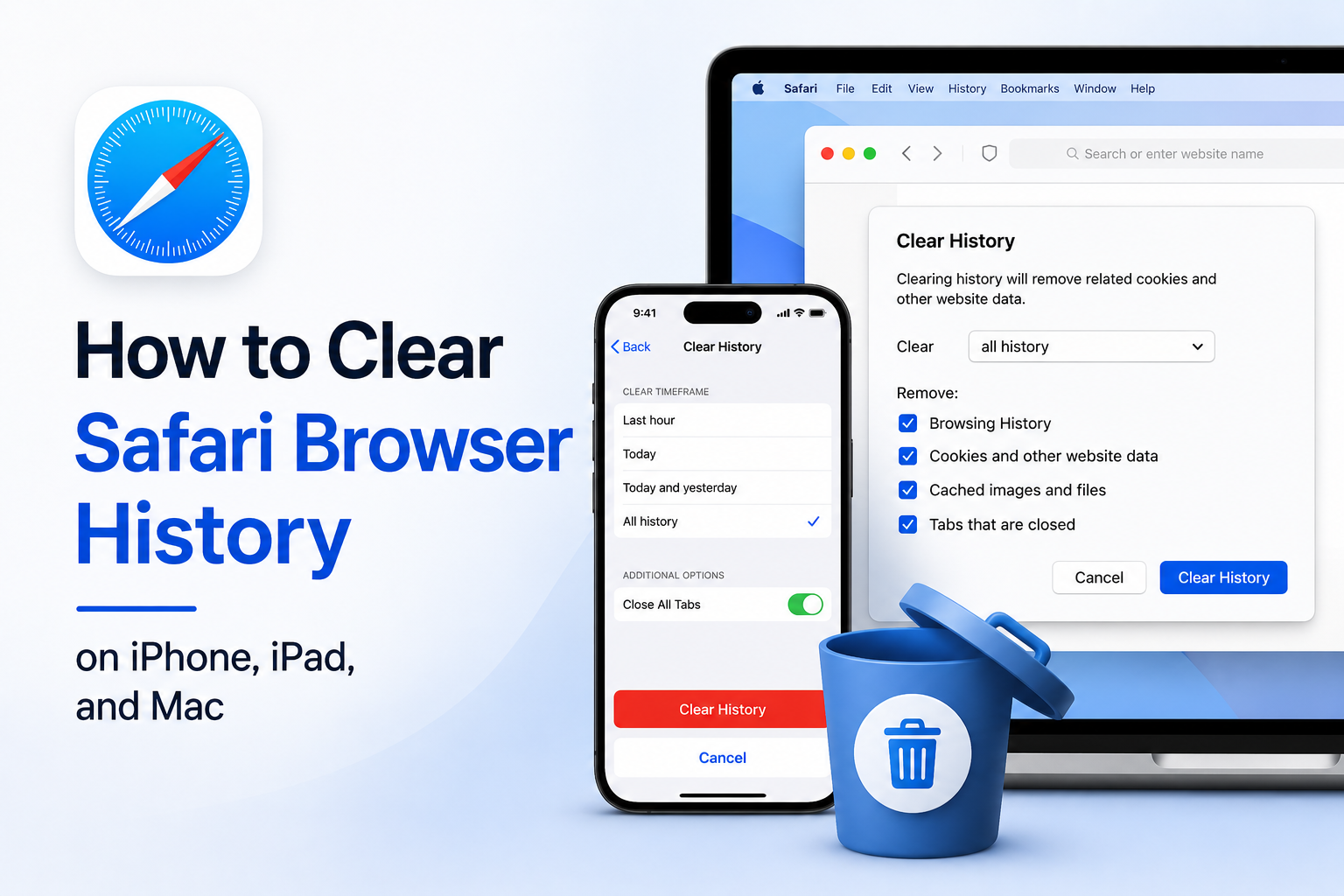
How to Clear Safari Browser History on iPhone, iPad, and Mac
Clearing your Safari browser history is a quick way to protect your privacy, remove traces of your browsing activity, and keep your device organized. Whether you’re using an iPhone, iPad, or Mac, Safari makes it easy to erase history and website data in just a few taps or clicks.
Why Clear Safari History?
There are a few common reasons people clear Safari browsing history:
- To protect personal privacy
- To remove saved websites from shared devices
- To fix Safari performance or loading issues
- To start fresh after researching a topic or making a purchase
If you share a device with family, coworkers, or anyone else, clearing history can help prevent others from seeing the pages you visited.
How to Clear Safari History on iPhone or iPad
If you’re using Safari on iOS or iPadOS, follow these steps:
- Open the Safari app.
- Tap the Bookmarks icon at the bottom of the screen.
- Tap History.
- Tap Clear in the upper-right corner.
- Choose Clear History and Website Data to confirm.
That’s all it takes to remove your Safari browsing history on an iPhone or iPad.
How to Clear Safari History on a Mac
To delete Safari browsing history on a Mac:
- Open Safari.
- Click History in the top menu bar.
- Select Clear History…
- Choose the time range you want to remove, such as the last hour or all history.
- Click Clear History to finish.
This removes your browsing history for the time range you selected.
What Gets Removed When You Clear Safari History?
Depending on the device and settings you choose, clearing Safari history may also remove website data such as cookies and cached files. That can affect things like:
- Saved website logins
- Autofill or session data
- Preferences for some sites
If you rely on stored website data, be careful before clearing everything at once.
What to Do If You Don’t Want to Lose Saved Data
If you want to keep some browsing information, consider these options:
- Clear only a limited time range on Mac
- Review website data before deleting it
- Use Private Browsing for future sessions
Private Browsing helps keep new activity out of your regular history without deleting anything already saved.
FAQ About Clearing Safari Browser History
Does clearing Safari history delete passwords?
Not always. However, clearing website data can affect saved sessions and some login information, so it’s a good idea to check what will be removed before confirming.
Can I clear just one part of my Safari history?
On Mac, Safari lets you choose a time range. On iPhone and iPad, the built-in option is broader and removes more data at once.
Is clearing history the same as deleting bookmarks?
No. Your bookmarks are separate from your browsing history, so clearing history does not remove saved bookmarks.
Final Thoughts
If you want a simple way to clear Safari browser history, Apple gives you straightforward options on both mobile and desktop. On iPhone and iPad, you can remove history and website data directly from Safari. On Mac, you can choose a time range and clear only what you need.
For better privacy and less clutter, it’s a good habit to review your Safari history from time to time and clear it when needed.
Keep reading
Related posts

How to Clear Search Recommendations
Learn how to clear search recommendations in browsers, Google, YouTube, Instagram, Facebook, TikTok, and other apps by managing history, cookies, and account activity.

How to Check Incognito History on Any Device
Learn whether Incognito history can be checked on phones, tablets, computers, routers, Google accounts, and managed school or work devices.

How to Erase Incognito History Permanently
Learn how to permanently erase Incognito-related traces by closing private tabs, deleting account activity, removing downloads, and clearing browser data.