
How to Delete LinkedIn Search History
Learn how to delete LinkedIn search history on desktop and mobile. Clear recent people, company, job, and content searches and improve LinkedIn privacy.
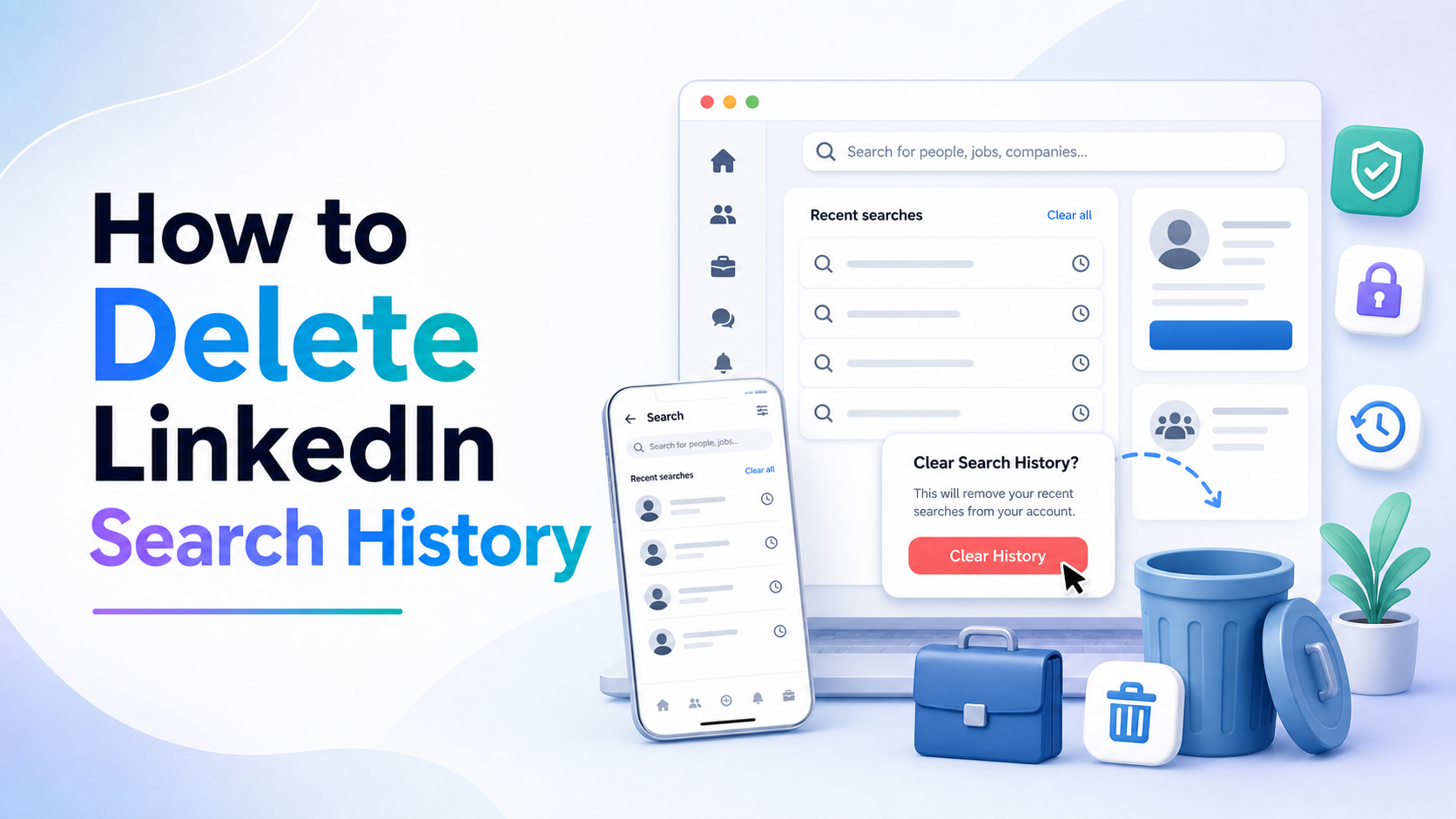
How to Delete LinkedIn Search History
LinkedIn stores recent searches to help you quickly find people, companies, jobs, posts, schools, and groups you searched for before.
This can be helpful for professional networking, but it can also create privacy concerns if you share a device or want to keep your activity cleaner.
In this guide, you’ll learn how to delete LinkedIn search history on desktop and mobile, how to remove individual searches, and how to improve your LinkedIn privacy.
Quick Answer
To delete LinkedIn search history:
- Open LinkedIn
- Click or tap the search bar
- View recent searches
- Remove individual searches with the X icon if available
- Clear browser history or app cache if old suggestions remain
LinkedIn search controls may vary depending on your account and app version.
What LinkedIn Stores in Search History
LinkedIn may save searches related to:
- People
- Companies
- Jobs
- Posts
- Groups
- Schools
- Hashtags
- Services
Deleting visible search history does not necessarily remove all LinkedIn activity or recommendation signals.
How to Delete LinkedIn Search History on Desktop
- Go to LinkedIn in your browser
- Sign into your account
- Click the search bar
- Review recent searches
- Click the X next to any search you want to remove
- Repeat for additional searches
If search terms still appear, clear your browser history and cookies.
How to Delete LinkedIn Search History on iPhone and Android
- Open the LinkedIn app
- Tap the search bar
- View recent searches
- Tap the X next to individual entries if available
- Update the app if search controls are missing
Some search suggestions may be based on LinkedIn recommendations rather than search history alone.
Does Deleting LinkedIn Search History Delete Profile Views?
No. Deleting search history does not delete:
- Profile views
- Messages
- Connections
- Job applications
- Posts
- Comments
- Saved jobs
- Your account
It mainly removes visible recent search entries.
Why LinkedIn Suggestions Still Appear
LinkedIn suggestions may be based on:
- Connections
- Profile views
- Job searches
- Companies followed
- Skills
- Industry activity
- Network behavior
- Recruiter and job recommendation data
Clearing search history does not fully reset these signals.
How to Improve LinkedIn Privacy
For better privacy:
- Clear recent searches regularly
- Review profile viewing options
- Manage ad settings
- Review public profile visibility
- Check who can see your connections
- Log out of shared devices
- Use a strong password
- Enable two-step verification
Frequently Asked Questions
Can I delete LinkedIn search history all at once?
LinkedIn may not always provide a single clear-all option. You can usually remove individual recent searches.
Can people see my LinkedIn search history?
Usually no, unless they have access to your device or account.
Does LinkedIn notify someone when I search them?
Searching alone usually does not notify someone, but viewing a profile may appear depending on privacy settings.
Does clearing search history remove job recommendations?
Not completely. Job recommendations use many other signals.
Final Thoughts
Deleting LinkedIn search history helps reduce visible traces of professional searches and keeps shared devices cleaner.
For stronger privacy, also review profile visibility, ad settings, login sessions, and two-step verification.
Keep reading
Related posts

How to Clear Search Recommendations
Learn how to clear search recommendations in browsers, Google, YouTube, Instagram, Facebook, TikTok, and other apps by managing history, cookies, and account activity.

How to Check Incognito History on Any Device
Learn whether Incognito history can be checked on phones, tablets, computers, routers, Google accounts, and managed school or work devices.

How to Erase Incognito History Permanently
Learn how to permanently erase Incognito-related traces by closing private tabs, deleting account activity, removing downloads, and clearing browser data.