
How to Clear Google Maps Search History
Learn how to clear Google Maps search history on iPhone, Android, and desktop. Delete recent places, remove activity, pause history, and improve location privacy.
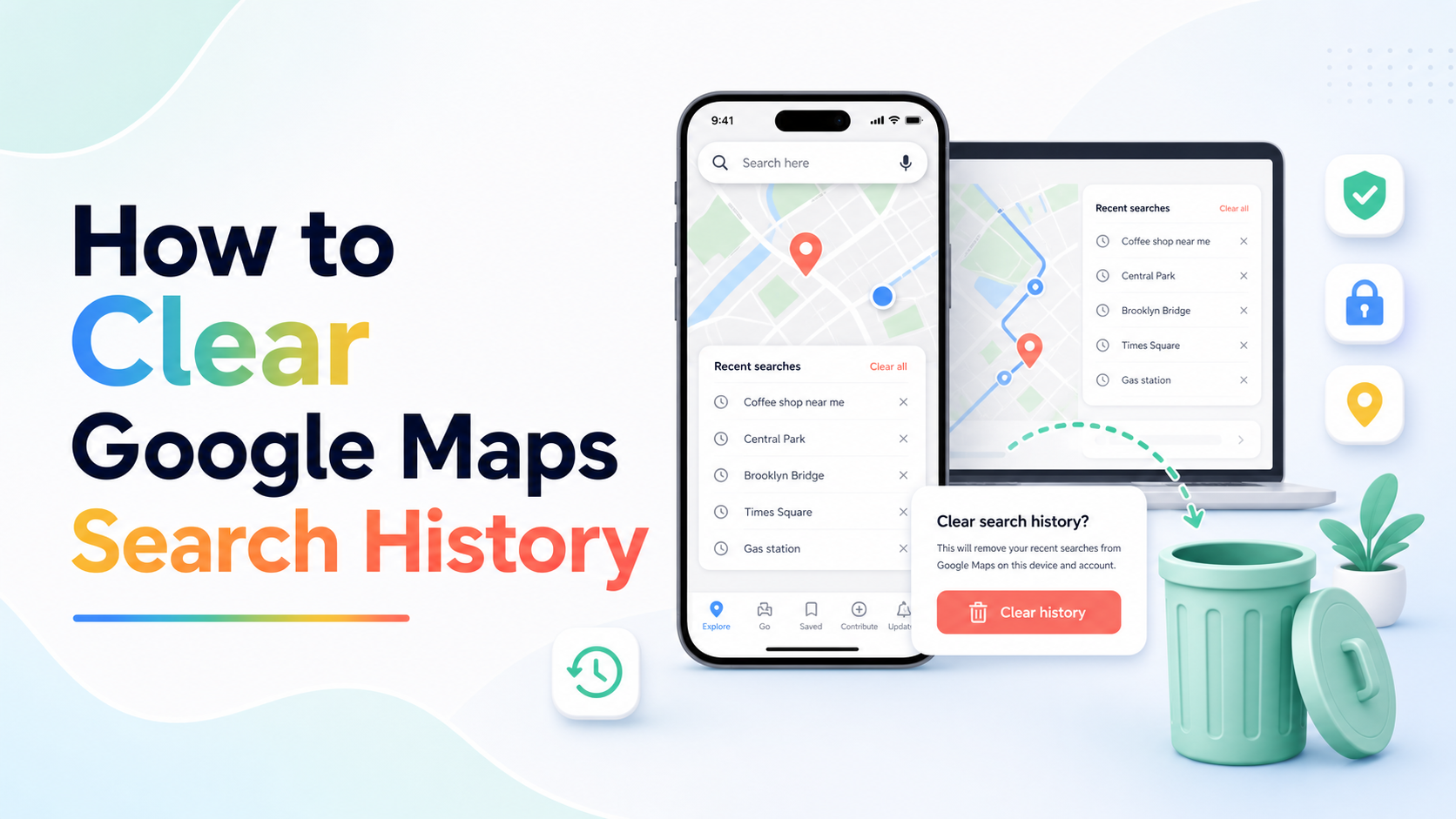
How to Clear Google Maps Search History
Google Maps stores searches for places, directions, businesses, addresses, and locations to improve recommendations and help you quickly find places again.
While this is convenient, many users prefer to clear Google Maps search history for privacy reasons, especially if they share a device or want to reduce location-based tracking.
In this guide, you’ll learn how to clear Google Maps search history on iPhone, Android, and desktop, how to delete individual places, and how to improve location privacy.
Quick Answer
To clear Google Maps search history:
- Open Google Maps
- Tap your profile picture
- Go to Settings
- Open Maps history
- Tap Delete
- Choose a time range
- Confirm deletion
What Google Maps Stores
Google Maps may store:
- Place searches
- Address searches
- Direction requests
- Businesses viewed
- Recent locations
- Saved places
- Location activity
- Timeline activity if enabled
Some activity may be saved to your Google account.
How to Clear Google Maps History on iPhone and Android
- Open Google Maps
- Tap your profile picture
- Tap Settings
- Select Maps history
- Tap Delete
- Choose Delete today, Delete custom range, or Delete all time
- Confirm deletion
How to Delete Individual Google Maps Searches
- Open Google Maps
- Tap the search bar
- Review recent searches
- Tap the X next to a place or search
- Repeat for additional items
How to Clear Google Maps History on Desktop
- Go to Google Maps in your browser
- Sign into your Google account
- Open Google account activity controls
- Select Maps activity
- Delete activity by date or all time
How to Pause Google Maps Activity
- Open your Google Account
- Go to Data & Privacy
- Open Web & App Activity or location-related controls
- Pause activity if desired
Pausing activity may reduce personalized recommendations.
Does Clearing Google Maps History Delete Saved Places?
No. Clearing history usually does not delete:
- Saved places
- Lists
- Reviews
- Photos
- Contributions
- Google account
It mainly removes search and activity history.
How to Improve Google Maps Privacy
For better privacy:
- Delete Maps history regularly
- Review Location History
- Pause Web & App Activity if desired
- Clear browser history
- Review app permissions
- Limit location access to while using the app
- Use incognito mode in Google Maps when appropriate
Frequently Asked Questions
Can I delete all Google Maps searches?
Yes. Use Delete all time in Maps history settings.
Does Google Maps history sync across devices?
Yes, if you are signed into the same Google account.
Does clearing Maps history delete Timeline?
Not always. Timeline and Location History may need separate review.
Can other people see my Maps searches?
Usually no, unless they have access to your device or Google account.
Final Thoughts
Clearing Google Maps search history helps reduce stored location activity and improve privacy.
For stronger protection, also review Location History, Web & App Activity, app permissions, and account security settings.
Keep reading
Related posts

How to Clear Search Recommendations
Learn how to clear search recommendations in browsers, Google, YouTube, Instagram, Facebook, TikTok, and other apps by managing history, cookies, and account activity.

How to Check Incognito History on Any Device
Learn whether Incognito history can be checked on phones, tablets, computers, routers, Google accounts, and managed school or work devices.

How to Erase Incognito History Permanently
Learn how to permanently erase Incognito-related traces by closing private tabs, deleting account activity, removing downloads, and clearing browser data.